
Why?
I run windows on my workstation at home. I’m not proud, and I wont say anything good about it.
I have been using the windows version of gaffer for sometime, and it’s pretty good now.
However, Gaffer is a tool for automating things, and there is no escaping the fact that automating anything reliably on a windows machine is like balancing pingpong balls.
On top of this I am using a remote render farm, which consists of Linux render nodes. Cross rendering is possible – but there is a limit to how much gaffer tape I can handle.
Installation.
Make sure virtualization is enabled in your machine bios
Run a command prompt as admin
wsl –install Ubuntu-22.04You will likely need to reboot
The Ubuntu os will need a username and password – you can use whatever you want.
There are lots of required dependencies (UI stuff) which don’t come with this Ubuntu, I found installing audacity to be an easy hack to get most of them. (probably a better way, but this works for me):
sudo apt-get updatesudo apt-get upgrade
sudo apt-get install libgl1 libglu1
sudo apt-get install audacity
Download and unpack gaffer:
wget https://github.com/GafferHQ/gaffer/releases/download/1.3.16.1/gaffer-1.3.16.1-linux.tar.gz
tar -xvf gaffer-1.3.16.1-linux.tar.gz
Run gaffer:
./gaffer-1.3.16.1-linux/bin/gafferFor convenience I created a symlink in /usr/bin/ that points to the gaffer executable (I also moved gaffer to a different location on disk):
cd /usr/bin/
sudo ln -s [ your path to gaffer ]/gaffer-1.3.16.1-linux/bin/gaffer gaffer
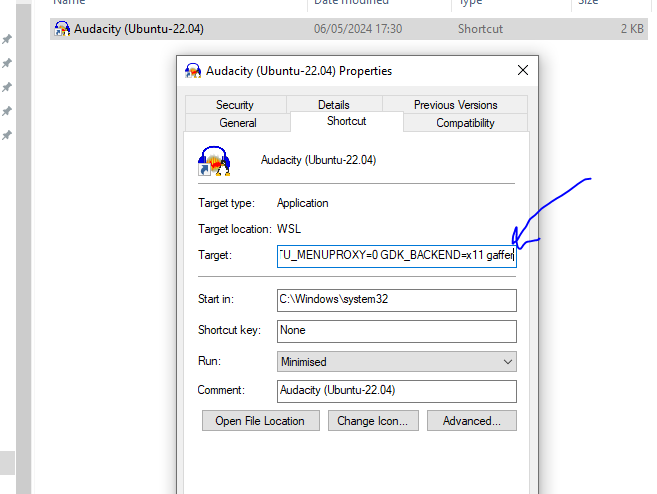
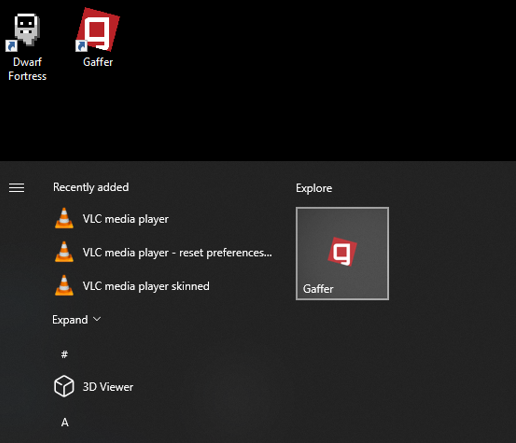
I also used the auto-created audacity start menu item as a template to make a gaffer shortcut, so now I can launch gaffer directly from the desktop or start menu.
Performance.
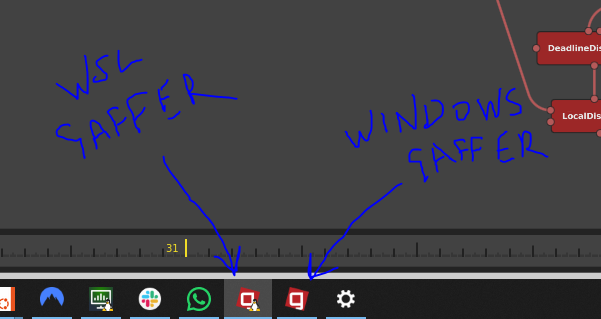
I’m have been testing ‘WSL Gaffer’ and ‘Windows Gaffer’, running both at the same time on different monitors and comparing. You get a little penguin on WSL processes on the taskbar, which is cute ( and also helpful ).
Initially the UI was very sluggish on WSL – something like a quarter of a second delay on anything. I persevered however, and for unknown reasons it now runs much better.
Even so, I would say that the windows version is slightly more responsive, but its so close that I am not sure if its my imagination or not.
Startup time for WSL is normally about 4 seconds, which is good – the windows version takes a little more than this, and is occasionally very slow to get going, like over 90 seconds.
Rendering seems identical between the two versions.
Disk access is generally similar speed, except when accessing the windows file system from WSL ( available as /mnt/c ), this is slow, and so I have been copying all my data ‘local’ to the WSL.
I have found filesystem access to be more predictable on WSL than on windows.
Both versions have been very stable, no crashes.
Conclusion.
If you are a full on windows user, and have no desire to use linux tools/features, then this is pretty much pointless – you can just run the Windows version.
If you are a linux user, or will be interacting with other linux users, this can be a good solution. maybe niche, but its working well for me.